> ## Documentation Index
> Fetch the complete documentation index at: https://pricepirate.com/docs/llms.txt
> Use this file to discover all available pages before exploring further.
# Connect listings
> Connect a tracked product to the right marketplace listing and understand the listing statuses.
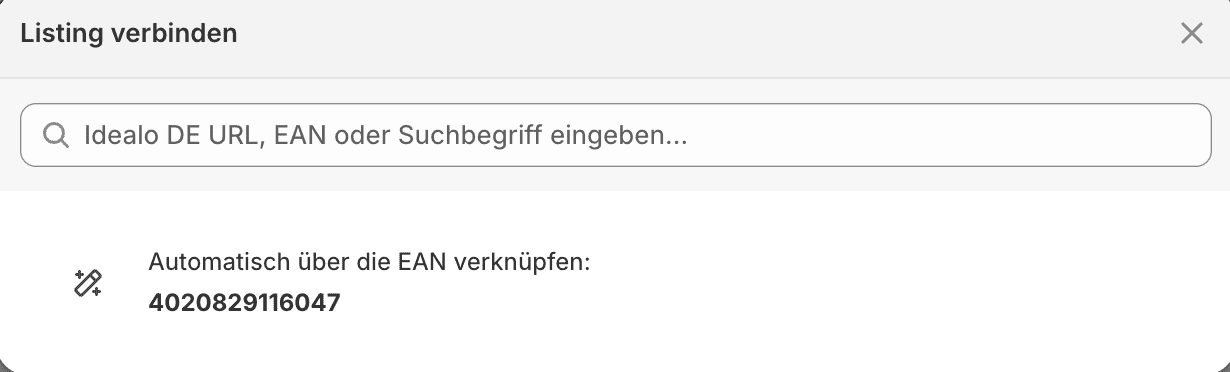
PricePirate needs a connected listing per market to measure competitor offers. You connect a listing in the **Connect listing** modal in the **Listings** column of the [Product settings](/docs/en/guide/catalog/product-settings).
 ## Connect a listing
The modal lets you find a listing in several ways:
* **Search**: The search field accepts a marketplace URL, an EAN/GTIN, or a search term. When you type a search term, the entry **Search for listings** appears with your term.
* **Automatic suggestion**: With no input, the modal suggests connecting the listing **automatically using EAN** or **using title**, provided the necessary data is present on the product.
* **Suggestion list**: Matches appear with an image, title, the number of **offers**, and a **from** price, so you can recognize the right one. The icon opens the listing in a new tab.
Clicking a match connects the listing. When you search directly by EAN/GTIN or URL, a dedicated entry appears (**Find listing via EAN / GTIN** or **Find listing via URL**) that creates the connection.
Some marketplaces currently support EAN/GTIN search only. In that case the modal tells you with the note "… currently supports EAN / GTIN search only."
## Listing status
In the **Listings** column of the product settings, the state per market shows how far the match has progressed:
| Status | Meaning |
| ------------------ | -------------------------------------------------------------------------------- |
| **Connected** | A listing is connected. The button shows its name. |
| **Searching** | A match is currently being determined. |
| **Select listing** | There are several possible matches. Open the modal and choose the right listing. |
| **Error** | The match failed. Open the modal and connect the listing again. |
| **Connect** | No listing is connected yet. |
Products with no connected listing on the market for price changes appear under the status filter **Listing missing** in the [Product settings](/docs/en/guide/catalog/product-settings).
## Manage connected listings
Once a listing is connected, the modal offers three actions:
| Action | Effect |
| ---------------------- | -------------------------------------------------------------------------------------------------------------------------- |
| **Refetch offers** | Reloads the listing's current offers. |
| **Edit** | Returns to the search to choose a different listing. |
| **Disconnect listing** | Removes the connection after a confirmation. The variant then has no listing on this market and cannot be monitored there. |
## Multiple marketplaces
You connect a separate listing per configured market. When several markets are set up, the **Listings** column groups them; the menu opens the modal for each market. For activating price monitoring, the listing on the **market for price changes** is what counts. You configure which markets are available, and set the market for price changes, in [Settings](/docs/en/guide/account/settings) under **Markets**.
## Check before activation
* The listing matches the product and variant.
* The EAN/GTIN is unique.
* Your own shop name is stored correctly in [Settings](/docs/en/guide/account/settings) so PricePirate recognizes your offer.
To see how connected listings become the foundation for automated repricing on Idealo, see the solution page [Idealo repricing](/docs/en/solutions/idealo-repricing).
## Connect a listing
The modal lets you find a listing in several ways:
* **Search**: The search field accepts a marketplace URL, an EAN/GTIN, or a search term. When you type a search term, the entry **Search for listings** appears with your term.
* **Automatic suggestion**: With no input, the modal suggests connecting the listing **automatically using EAN** or **using title**, provided the necessary data is present on the product.
* **Suggestion list**: Matches appear with an image, title, the number of **offers**, and a **from** price, so you can recognize the right one. The icon opens the listing in a new tab.
Clicking a match connects the listing. When you search directly by EAN/GTIN or URL, a dedicated entry appears (**Find listing via EAN / GTIN** or **Find listing via URL**) that creates the connection.
Some marketplaces currently support EAN/GTIN search only. In that case the modal tells you with the note "… currently supports EAN / GTIN search only."
## Listing status
In the **Listings** column of the product settings, the state per market shows how far the match has progressed:
| Status | Meaning |
| ------------------ | -------------------------------------------------------------------------------- |
| **Connected** | A listing is connected. The button shows its name. |
| **Searching** | A match is currently being determined. |
| **Select listing** | There are several possible matches. Open the modal and choose the right listing. |
| **Error** | The match failed. Open the modal and connect the listing again. |
| **Connect** | No listing is connected yet. |
Products with no connected listing on the market for price changes appear under the status filter **Listing missing** in the [Product settings](/docs/en/guide/catalog/product-settings).
## Manage connected listings
Once a listing is connected, the modal offers three actions:
| Action | Effect |
| ---------------------- | -------------------------------------------------------------------------------------------------------------------------- |
| **Refetch offers** | Reloads the listing's current offers. |
| **Edit** | Returns to the search to choose a different listing. |
| **Disconnect listing** | Removes the connection after a confirmation. The variant then has no listing on this market and cannot be monitored there. |
## Multiple marketplaces
You connect a separate listing per configured market. When several markets are set up, the **Listings** column groups them; the menu opens the modal for each market. For activating price monitoring, the listing on the **market for price changes** is what counts. You configure which markets are available, and set the market for price changes, in [Settings](/docs/en/guide/account/settings) under **Markets**.
## Check before activation
* The listing matches the product and variant.
* The EAN/GTIN is unique.
* Your own shop name is stored correctly in [Settings](/docs/en/guide/account/settings) so PricePirate recognizes your offer.
To see how connected listings become the foundation for automated repricing on Idealo, see the solution page [Idealo repricing](/docs/en/solutions/idealo-repricing).