> ## Documentation Index
> Fetch the complete documentation index at: https://pricepirate.com/docs/llms.txt
> Use this file to discover all available pages before exploring further.
# Product settings
> Manage tracked products: price monitoring, listings, pricing strategies, and synchronization in one place.
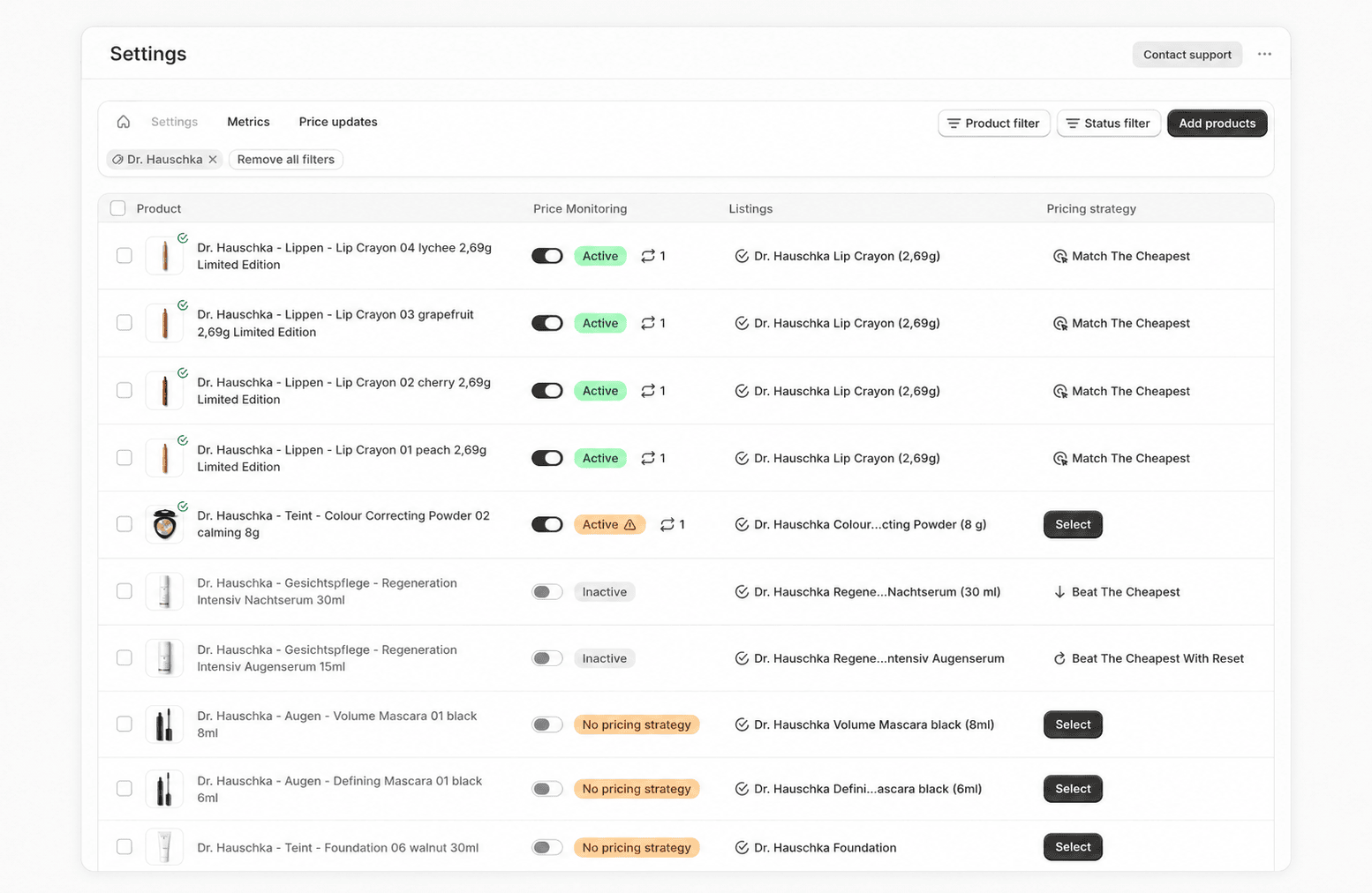
The **Settings** tab in the product area is the central table of all tracked products. Each row is one variant. Here you connect listings, assign pricing strategies, and switch price monitoring on or off. You reach the page through **Products** in the app's navigation — opening it goes straight to this table.
 ## Tabs and filters
Above the table you switch between four views of the same products:
* The **home icon** leads to the app's home page.
* **Settings** is the table described here.
* **Metrics** opens the [product metrics](/docs/en/guide/insights/metrics).
* **Price updates** opens the [pending price changes](/docs/en/guide/price-changes/review).
A product filter carries over to **Metrics** when you switch tabs. The status filter applies only to this table.
**Product filter**: Limit the table to selected products or one collection. The two options are mutually exclusive. Active filters appear as removable chips above the table. **Remove all filters** clears them all.
**Status filter**: This filter is available only on the **Settings** tab. You can select several statuses at once; the table then shows every product that matches at least one of them.
| Status | Meaning |
| ---------------------------- | -------------------------------------------------------------------------------------------------------------------------------------------------------------- |
| **Active** | Price monitoring is switched on. |
| **Inactive** | Price monitoring is switched off. |
| **Pricing strategy missing** | No pricing strategy is assigned to the product. |
| **Listing missing** | No listing is connected for the market for price changes. |
| **High volatility** | The listing's cheapest offer changes its price more often than the listing is synchronized. Read more under [Price volatility](/docs/en/guide/insights/volatility). |
**Add products**: Use this button to take more products into monitoring. See [Add products](/docs/en/guide/catalog/add-products).
## The table
The table has four columns:
| Column | Meaning |
| -------------------- | -------------------------------------------------- |
| **Product** | Variant with image and title. |
| **Price Monitoring** | Switch and monitoring status for this variant. |
| **Listings** | The marketplace listings connected to the variant. |
| **Pricing strategy** | The assigned pricing strategy. |
## Price monitoring
The **Price Monitoring** switch starts or stops monitoring for a variant. Once it is active, the regular measurements (synchronizations) of the listing begin and [credits](/docs/en/guide/concepts/credits) are consumed.
To switch monitoring on, two prerequisites must be met:
| Prerequisite | Why |
| ------------------------------------------------------- | --------------------------------------------------------------- |
| A connected listing on the **market for price changes** | PricePirate measures competitor offers on this market. |
| A stored own **shop name** | PricePirate uses it to recognize your own offer in the listing. |
A **pricing strategy** is not required to activate. Without one, however, no price changes are generated. As long as a prerequisite is missing, the switch stays disabled and the row shows the reason as a status badge.
| Status badge | Meaning |
| ---------------------------------- | ----------------------------------------------------------------------------------------------------------------------------------- |
| **Active** (green) | Monitoring is running and a pricing strategy is assigned. |
| **Active** with a warning triangle | Monitoring is running, but no pricing strategy is set. The note reads: "Price changes are only shown if a pricing strategy is set." |
| **Listing missing** | No connected listing on the market for price changes — activation is blocked. |
| **Shop name missing** | No own shop name is stored. The chip leads straight to [Settings](/docs/en/guide/account/settings). |
| **Pricing strategy missing** | The product can be activated but has no pricing strategy yet. |
| **Inactive** | Monitoring is switched off and can be switched on. |
Next to active rows, a button shows the number of daily synchronizations. It opens the **Synchronization settings** for that listing — see [Synchronization](/docs/en/guide/automation/syncs).
If activating exceeds your plan's daily credit limit, the **Daily credit limit reached** dialog appears with an upgrade option. See [Credits](/docs/en/guide/concepts/credits) and [Billing](/docs/en/guide/account/billing).
## Listings
The **Listings** column shows the listings connected per configured market, with a marketplace icon and a count. **Connect** or **Select listing** opens the **Connect listing** modal, where you search for and assign a listing. The full description of the modal and the listing statuses is under [Connect listings](/docs/en/guide/catalog/connect-listings). You configure which markets are available in [Settings](/docs/en/guide/account/settings) under **Markets**.
## Pricing strategy
The **Pricing strategy** column shows the assigned strategy or the **Select** button. It opens the configuration dialog. Its structure is described under [Strategy settings](/docs/en/guide/pricing/settings), the individual strategies under [Pricing strategies](/docs/en/guide/pricing/strategies). You can save a finished configuration as a [template](/docs/en/guide/pricing/templates) and apply it to more products.
In shops with multiple markets, this dialog also lets you set the **Market for price changes** for this variant, overriding the shop-wide default. Learn more under [Strategy settings](/docs/en/guide/pricing/settings).
## Edit several products at once
When you select products with the checkboxes, an action bar with three menus appears above the table.
**Select pricing strategy**: Apply a saved template to all selected products, or create a new strategy via **Create new pricing strategy**.
**Navigation**: Jump to the matching views — each filtered to the selection:
| Item | Destination |
| -------------------------- | ------------------------------------------------------- |
| **Show price updates** | [Pending price changes](/docs/en/guide/price-changes/review) |
| **Show metrics** | [Product metrics](/docs/en/guide/insights/metrics) |
| **Show competitors** | [Competitors report](/docs/en/guide/reports/competitors) |
| **Show positions report** | [Positions report](/docs/en/guide/reports/positions) |
| **Show activity report** | [Activity report](/docs/en/guide/reports/activity) |
| **Show automation report** | [Automation report](/docs/en/guide/reports/automation) |
| **View on Shopify** | The variant in Shopify (single selection only) |
**Edit**: This menu bundles the bulk actions:
| Action | Effect |
| ---------------------------------- | ---------------------------------------------------------------------------------------------------------------- |
| **Automatically connect listings** | Connects missing listings of the selection automatically via EAN or title. |
| **Synchronization settings** | Opens the [synchronization settings](/docs/en/guide/automation/syncs) for all connected listings of the selection. |
| **Activate price monitoring** | Switches monitoring on for the products that can be activated. |
| **Deactivate price monitoring** | Switches monitoring off for the active products. |
| **Delete** | Removes the selected tracked products and their data after a confirmation. Your Shopify product stays unchanged. |
## Next steps
Analyze individual products through the [product metrics](/docs/en/guide/insights/metrics). Look at the whole marketplace through the [reports](/docs/en/guide/reports/overview).
## Tabs and filters
Above the table you switch between four views of the same products:
* The **home icon** leads to the app's home page.
* **Settings** is the table described here.
* **Metrics** opens the [product metrics](/docs/en/guide/insights/metrics).
* **Price updates** opens the [pending price changes](/docs/en/guide/price-changes/review).
A product filter carries over to **Metrics** when you switch tabs. The status filter applies only to this table.
**Product filter**: Limit the table to selected products or one collection. The two options are mutually exclusive. Active filters appear as removable chips above the table. **Remove all filters** clears them all.
**Status filter**: This filter is available only on the **Settings** tab. You can select several statuses at once; the table then shows every product that matches at least one of them.
| Status | Meaning |
| ---------------------------- | -------------------------------------------------------------------------------------------------------------------------------------------------------------- |
| **Active** | Price monitoring is switched on. |
| **Inactive** | Price monitoring is switched off. |
| **Pricing strategy missing** | No pricing strategy is assigned to the product. |
| **Listing missing** | No listing is connected for the market for price changes. |
| **High volatility** | The listing's cheapest offer changes its price more often than the listing is synchronized. Read more under [Price volatility](/docs/en/guide/insights/volatility). |
**Add products**: Use this button to take more products into monitoring. See [Add products](/docs/en/guide/catalog/add-products).
## The table
The table has four columns:
| Column | Meaning |
| -------------------- | -------------------------------------------------- |
| **Product** | Variant with image and title. |
| **Price Monitoring** | Switch and monitoring status for this variant. |
| **Listings** | The marketplace listings connected to the variant. |
| **Pricing strategy** | The assigned pricing strategy. |
## Price monitoring
The **Price Monitoring** switch starts or stops monitoring for a variant. Once it is active, the regular measurements (synchronizations) of the listing begin and [credits](/docs/en/guide/concepts/credits) are consumed.
To switch monitoring on, two prerequisites must be met:
| Prerequisite | Why |
| ------------------------------------------------------- | --------------------------------------------------------------- |
| A connected listing on the **market for price changes** | PricePirate measures competitor offers on this market. |
| A stored own **shop name** | PricePirate uses it to recognize your own offer in the listing. |
A **pricing strategy** is not required to activate. Without one, however, no price changes are generated. As long as a prerequisite is missing, the switch stays disabled and the row shows the reason as a status badge.
| Status badge | Meaning |
| ---------------------------------- | ----------------------------------------------------------------------------------------------------------------------------------- |
| **Active** (green) | Monitoring is running and a pricing strategy is assigned. |
| **Active** with a warning triangle | Monitoring is running, but no pricing strategy is set. The note reads: "Price changes are only shown if a pricing strategy is set." |
| **Listing missing** | No connected listing on the market for price changes — activation is blocked. |
| **Shop name missing** | No own shop name is stored. The chip leads straight to [Settings](/docs/en/guide/account/settings). |
| **Pricing strategy missing** | The product can be activated but has no pricing strategy yet. |
| **Inactive** | Monitoring is switched off and can be switched on. |
Next to active rows, a button shows the number of daily synchronizations. It opens the **Synchronization settings** for that listing — see [Synchronization](/docs/en/guide/automation/syncs).
If activating exceeds your plan's daily credit limit, the **Daily credit limit reached** dialog appears with an upgrade option. See [Credits](/docs/en/guide/concepts/credits) and [Billing](/docs/en/guide/account/billing).
## Listings
The **Listings** column shows the listings connected per configured market, with a marketplace icon and a count. **Connect** or **Select listing** opens the **Connect listing** modal, where you search for and assign a listing. The full description of the modal and the listing statuses is under [Connect listings](/docs/en/guide/catalog/connect-listings). You configure which markets are available in [Settings](/docs/en/guide/account/settings) under **Markets**.
## Pricing strategy
The **Pricing strategy** column shows the assigned strategy or the **Select** button. It opens the configuration dialog. Its structure is described under [Strategy settings](/docs/en/guide/pricing/settings), the individual strategies under [Pricing strategies](/docs/en/guide/pricing/strategies). You can save a finished configuration as a [template](/docs/en/guide/pricing/templates) and apply it to more products.
In shops with multiple markets, this dialog also lets you set the **Market for price changes** for this variant, overriding the shop-wide default. Learn more under [Strategy settings](/docs/en/guide/pricing/settings).
## Edit several products at once
When you select products with the checkboxes, an action bar with three menus appears above the table.
**Select pricing strategy**: Apply a saved template to all selected products, or create a new strategy via **Create new pricing strategy**.
**Navigation**: Jump to the matching views — each filtered to the selection:
| Item | Destination |
| -------------------------- | ------------------------------------------------------- |
| **Show price updates** | [Pending price changes](/docs/en/guide/price-changes/review) |
| **Show metrics** | [Product metrics](/docs/en/guide/insights/metrics) |
| **Show competitors** | [Competitors report](/docs/en/guide/reports/competitors) |
| **Show positions report** | [Positions report](/docs/en/guide/reports/positions) |
| **Show activity report** | [Activity report](/docs/en/guide/reports/activity) |
| **Show automation report** | [Automation report](/docs/en/guide/reports/automation) |
| **View on Shopify** | The variant in Shopify (single selection only) |
**Edit**: This menu bundles the bulk actions:
| Action | Effect |
| ---------------------------------- | ---------------------------------------------------------------------------------------------------------------- |
| **Automatically connect listings** | Connects missing listings of the selection automatically via EAN or title. |
| **Synchronization settings** | Opens the [synchronization settings](/docs/en/guide/automation/syncs) for all connected listings of the selection. |
| **Activate price monitoring** | Switches monitoring on for the products that can be activated. |
| **Deactivate price monitoring** | Switches monitoring off for the active products. |
| **Delete** | Removes the selected tracked products and their data after a confirmation. Your Shopify product stays unchanged. |
## Next steps
Analyze individual products through the [product metrics](/docs/en/guide/insights/metrics). Look at the whole marketplace through the [reports](/docs/en/guide/reports/overview).