
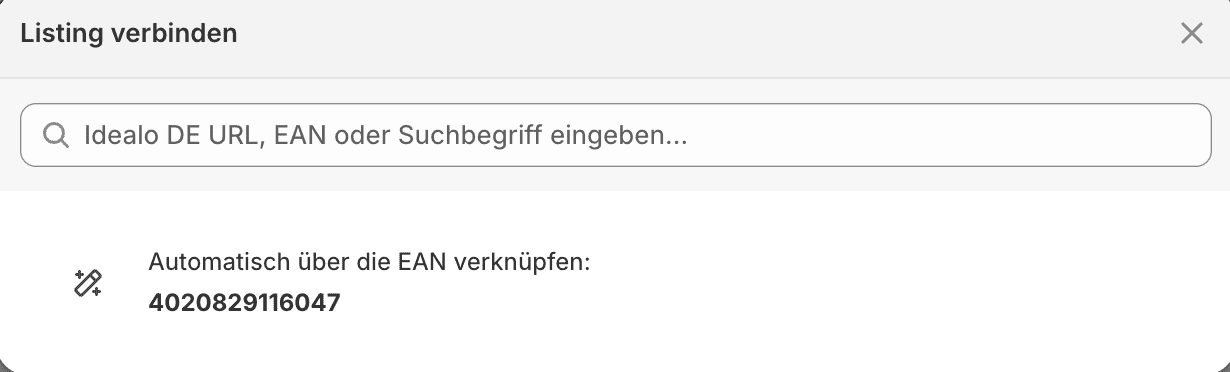
The „Connect listing“ modal with the search field and an automatic suggestion via EAN
Connect a listing
The modal lets you find a listing in several ways:- Search: The search field accepts a marketplace URL, an EAN/GTIN, or a search term. When you type a search term, the entry Search for listings appears with your term.
- Automatic suggestion: With no input, the modal suggests connecting the listing automatically using EAN or using title, provided the necessary data is present on the product.
- Suggestion list: Matches appear with an image, title, the number of offers, and a from price, so you can recognize the right one. The icon opens the listing in a new tab.
Some marketplaces currently support EAN/GTIN search only. In that case the modal tells you with the note ”… currently supports EAN / GTIN search only.”
Listing status
In the Listings column of the product settings, the state per market shows how far the match has progressed:
Products with no connected listing on the market for price changes appear under the status filter Listing missing in the Product settings.
Manage connected listings
Once a listing is connected, the modal offers three actions:Multiple marketplaces
You connect a separate listing per configured market. When several markets are set up, the Listings column groups them; the menu opens the modal for each market. For activating price monitoring, the listing on the market for price changes is what counts. You configure which markets are available, and set the market for price changes, in Settings under Markets.Check before activation
- The listing matches the product and variant.
- The EAN/GTIN is unique.
- Your own shop name is stored correctly in Settings so PricePirate recognizes your offer.