
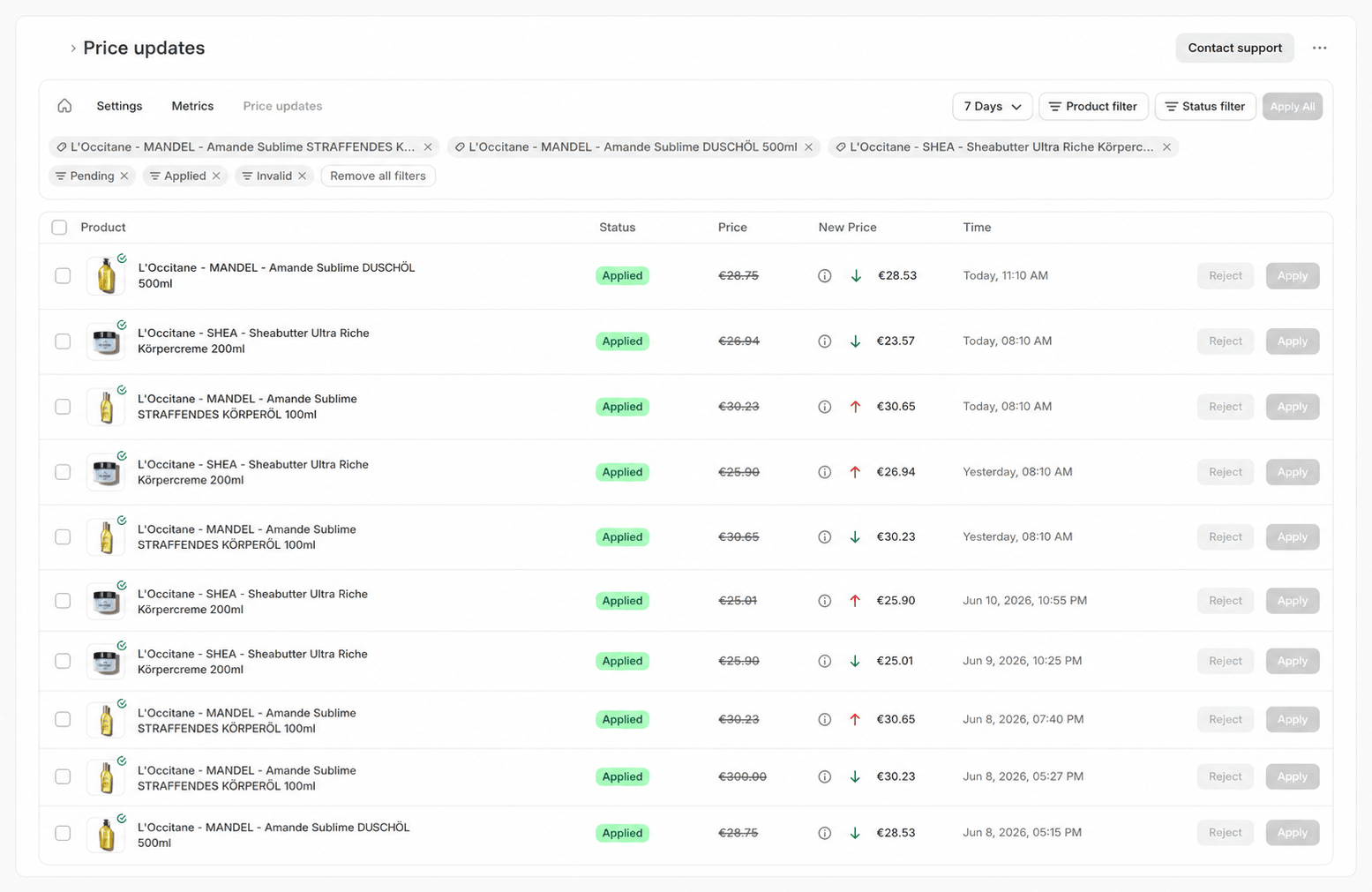
The Price updates page with status filters, time range, and the table of price changes
The table
Each row represents one suggested price change for a variant.
The Price of a pending change is live: it shows the price currently set in Shopify, so you can check the recommendation against the real starting value. When an info icon sits next to the new price, a tooltip shows the strategy’s reason for the recommendation.
Pending changes always appear at the top, followed by the remaining rows in descending order of their last update.
For variants with dynamic discounts, the row shows the regular price as the new price and, next to it, a clickable discount chip with the discount amount. Use the chip to view, copy, or delete the discount.
Status
Each price change has exactly one of these six statuses:The “market not connected” reason appears after interactive recalculations, for example after a strategy change, activating a variant, or a manual Rerun, not from the routine synchronizations.
Filtering
The table can be narrowed with four controls:Applying and rejecting
Every pending row offers Apply and Reject. Apply writes the new price to Shopify, Reject discards the recommendation. Both actions exist only for pending changes. Apply is disabled when the new price already matches the current price. If the write to Shopify fails, the row takes the status Error. Apply All in the top right applies every pending change in the current view — that is, within the selected time range and product filter. The button is active only when the view contains pending changes.Selection and navigation
Use the checkboxes to select multiple rows. The selection bar then offers:- Apply and Reject for all selected pending changes.
- Filter limits the page to the products in your selection.
- The Navigation menu jumps with your selection to Product settings, Metrics, the reports, or the product in the Shopify admin.